




Enhanced Email Signature
How to save and load the conference logo onto your signature using Microsoft Outlook
| 1 | Click on the link below to download the Logo web-banner. Note: Depending on your settings, JPGs may open in your browser. We recommend right clicking the download link and selecting Save Target As... If prompted select Save to save the file to a location on your computer. |
|
| Download » |
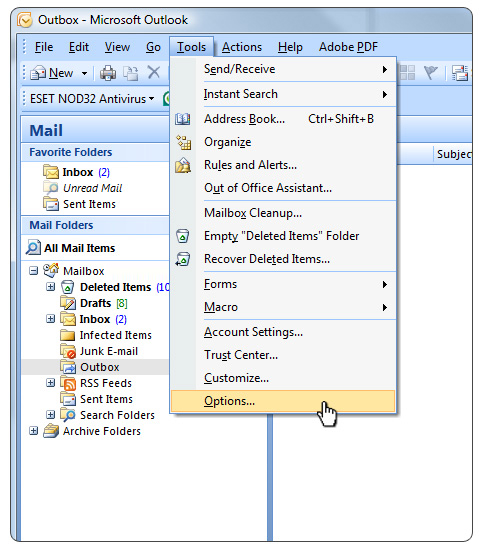
Open outlook. Select tools, options from the outlook menu. |
 |
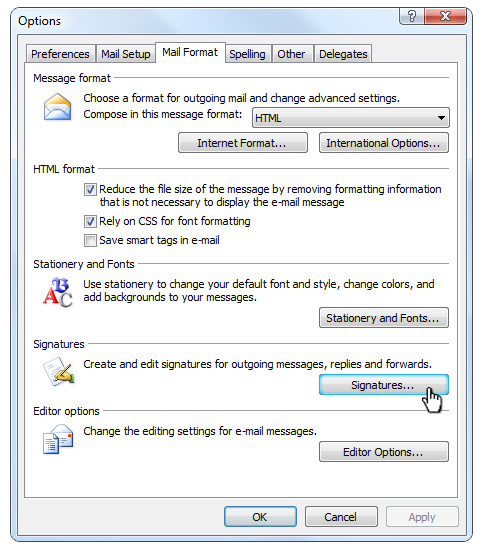
Go to the mail format tab. Click signature. |
 |
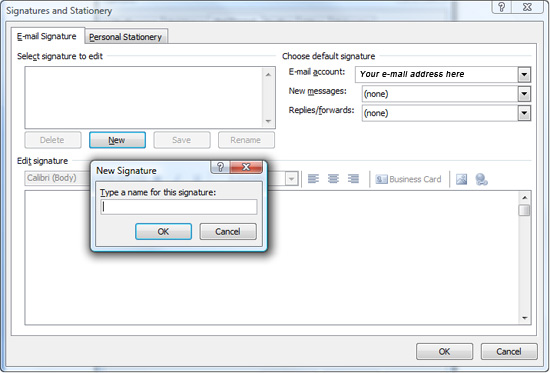
Highlight your signature. Click "New" and give your signature a name. |
 |
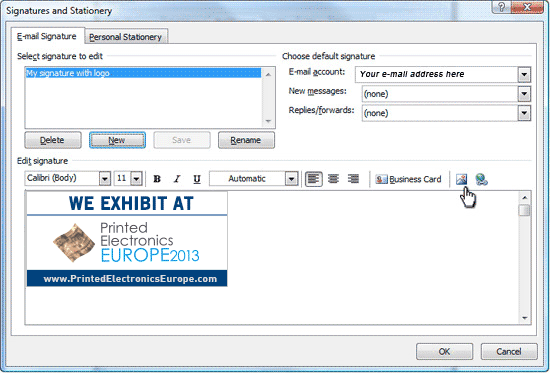
In the lower box click the picture icon. Browse system till you find your logo. |
|
Click the banner image to select it. [1] Click the "link" icon [2] Type the conference web-address in the address box [3] (! Important: Always begin with http://www) Click Ok to apply your changes and close all dialog windows.[4] |
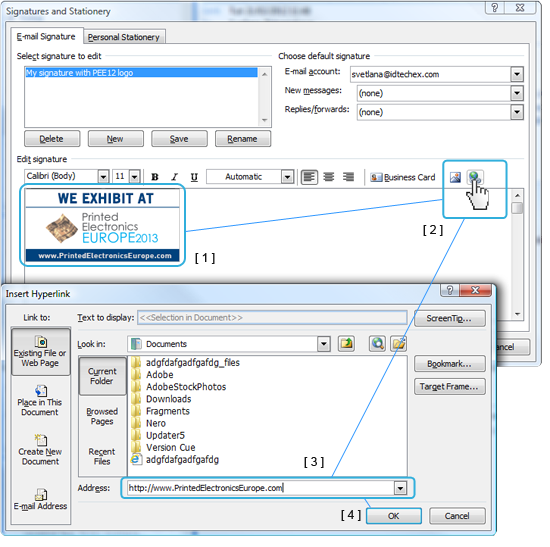 |
Open new email, the logo should appear in your signature area . |
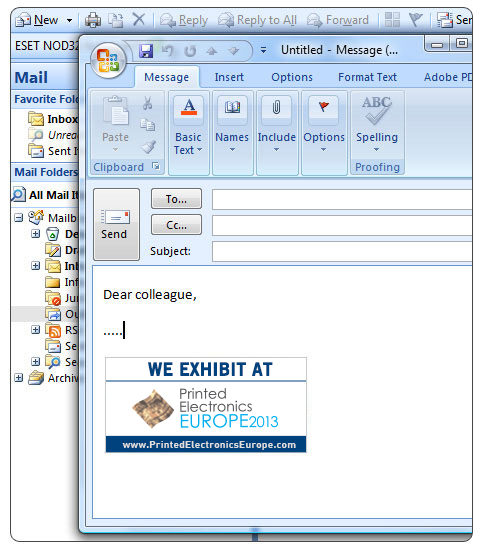 |


